DTMart logoDTMartYour neighbourhood shops, on your phone

User manual · DTMart

Guides for customers

How to shop your neighbourhood from your phone — find shops, order, send your list, book services, and pay the way you always have.

1 · Find shops near you

  1. Open the app. Your home screen — Stores near you — shows shops in your country, in your currency.
  2. Use the search to find a store or a product.
  3. Tap a shop type — grocery, salon, vegetables, restaurant, catering and more — to see only those shops.
  4. Every shop card shows whether it is open now, and its hours.
  5. Tap the heart on a shop to keep it in your favourites.

Good to know: you only ever see shops in your own country — Canada sees Canada, Sri Lanka sees Sri Lanka. No clutter from far away.
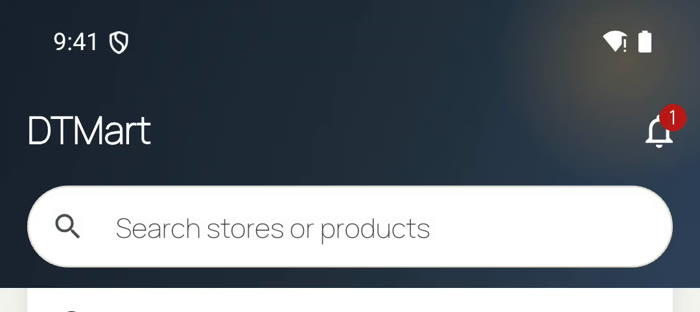
DTMart home screen with search for stores or products

Search stores or products from the top.
2 · Order groceries

  1. Open a shop and browse its items.
  2. Tap + to add what you need; use − to take something back.
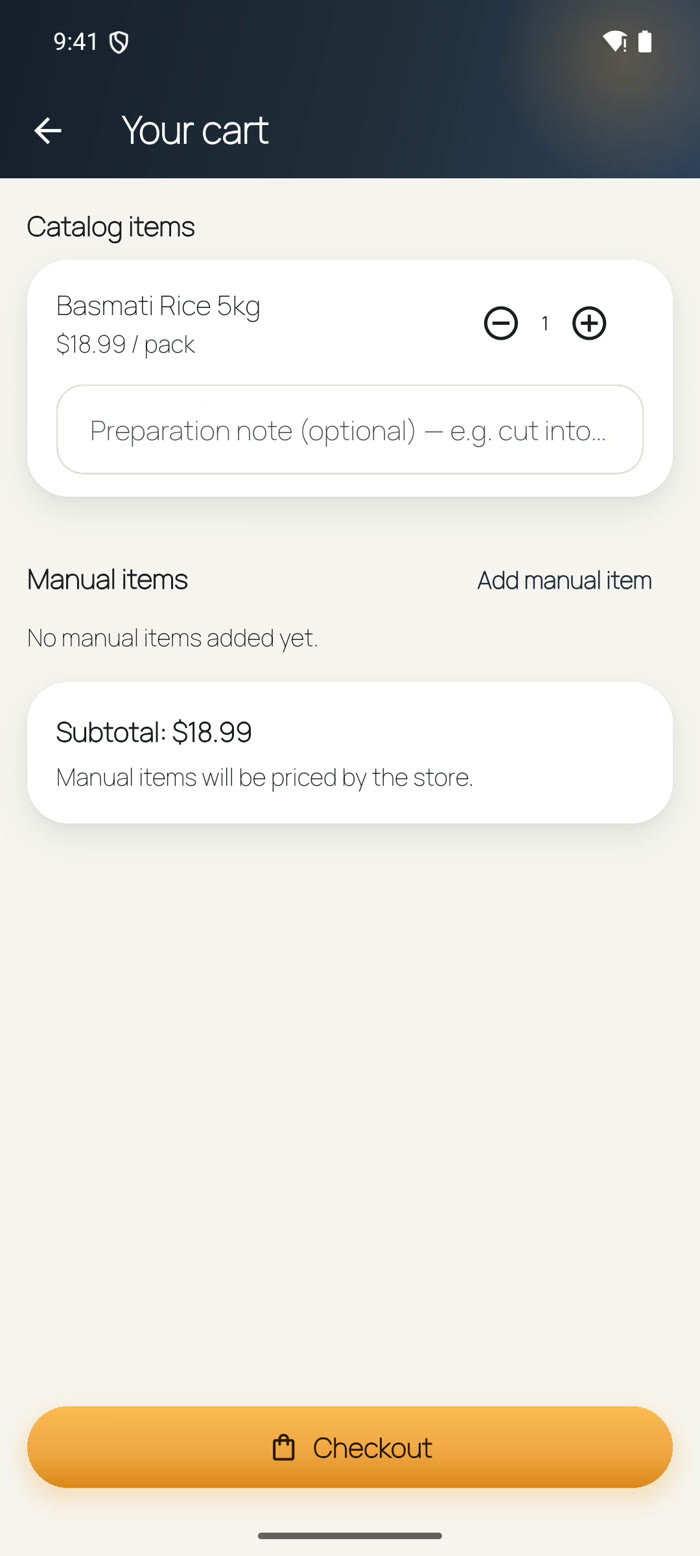
  3. Open Your cart. Something missing from the shop's list? Add it as a manual item — the shop will price it for you.
  4. Add a preparation note if you need one ("cut into pieces", "ripe ones").
  5. Tap Checkout and finish your order (see Pay your way).
Cart with an item, manual items and a Checkout button

Your cart, ready for checkout.

3 · Send your list

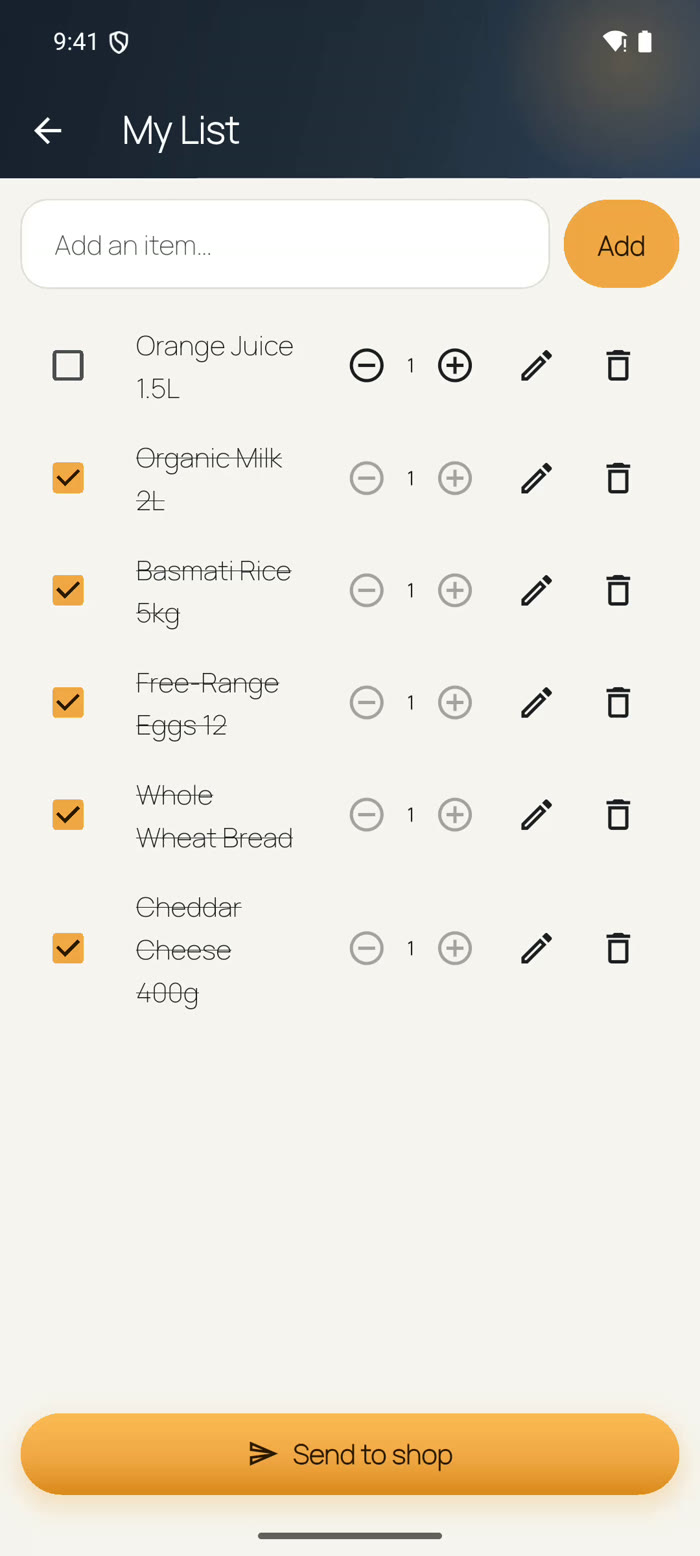
  1. Open My List from the bottom bar.
  2. Type your items in your own words, with amounts — "Organic Milk 2L", "Eggs 12". Anything your home needs, even things no catalogue lists.
  3. Tick the items you want this time.
  4. Tap Send to shop and choose your shop.
  5. The shop prices your hand-written items, packs them, and your list becomes an order — follow it under Orders.

Made for real life: build the list slowly all week — the way you have always kept it on paper — then send it in one tap.

My List with groceries ticked and a Send to shop button

My List, ready to send.

4 · Book a salon service

  1. Open the salon and choose your service — the price and how long it takes are written on it.
  2. Tap Book.
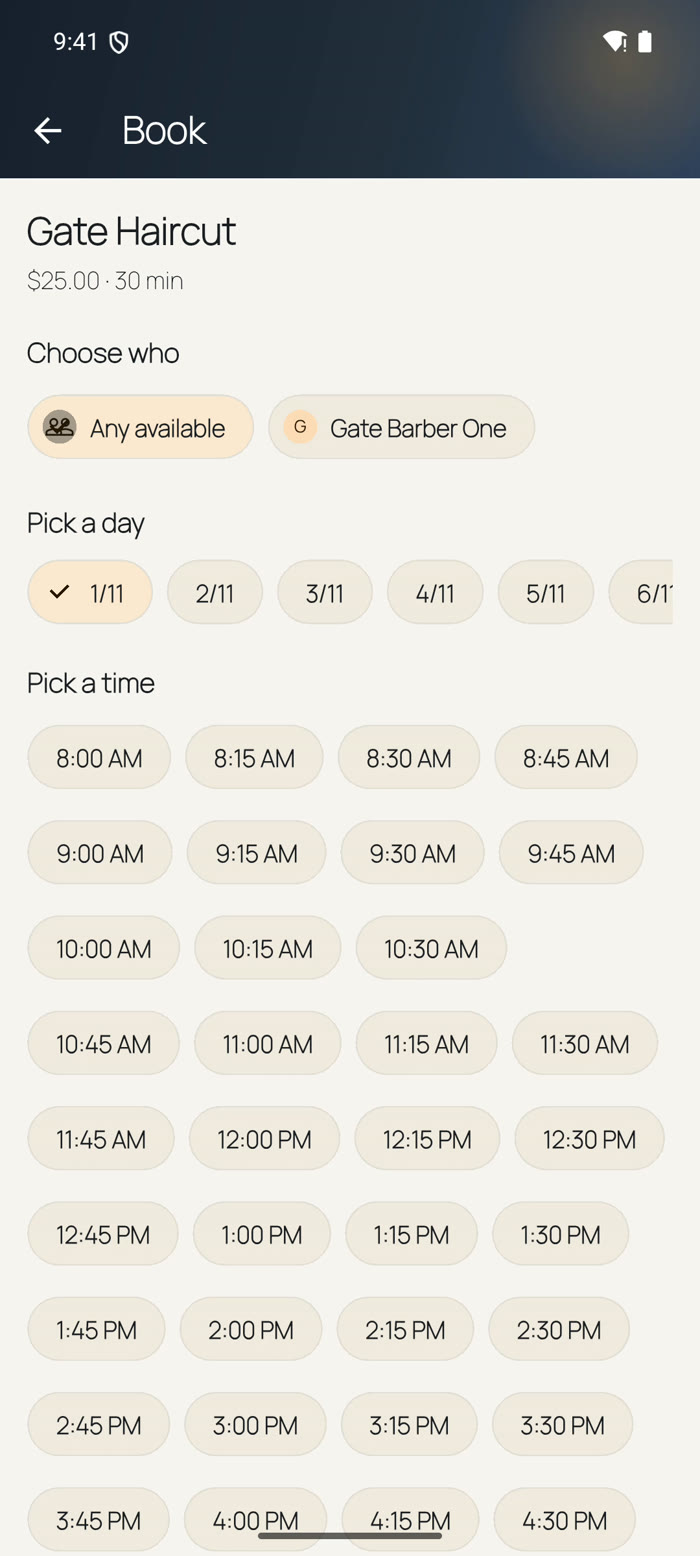
  3. Choose who — pick a person, or "Any available".
  4. Pick a day, then pick a time from the slots shown.
  5. Check the details and confirm. Your booking is with the shop — no phone call needed.
Booking screen: choose who, pick a day, pick a time

Booking takes under a minute.

5 · Order catering

  1. Open a home catering shop and pick your dishes.
  2. When you order, choose the date and the meal time — lunch, dinner, the event itself.
  3. Order early: every catering shop sets how many hours ahead you must order, so the food is made fresh for your day.
  4. The shop confirms, cooks, and your order is ready at the time you chose.

Good to know: for a big day — a wedding, a party — order as early as the shop allows. The best caterers book out first.

6 · Pay cash, book or card

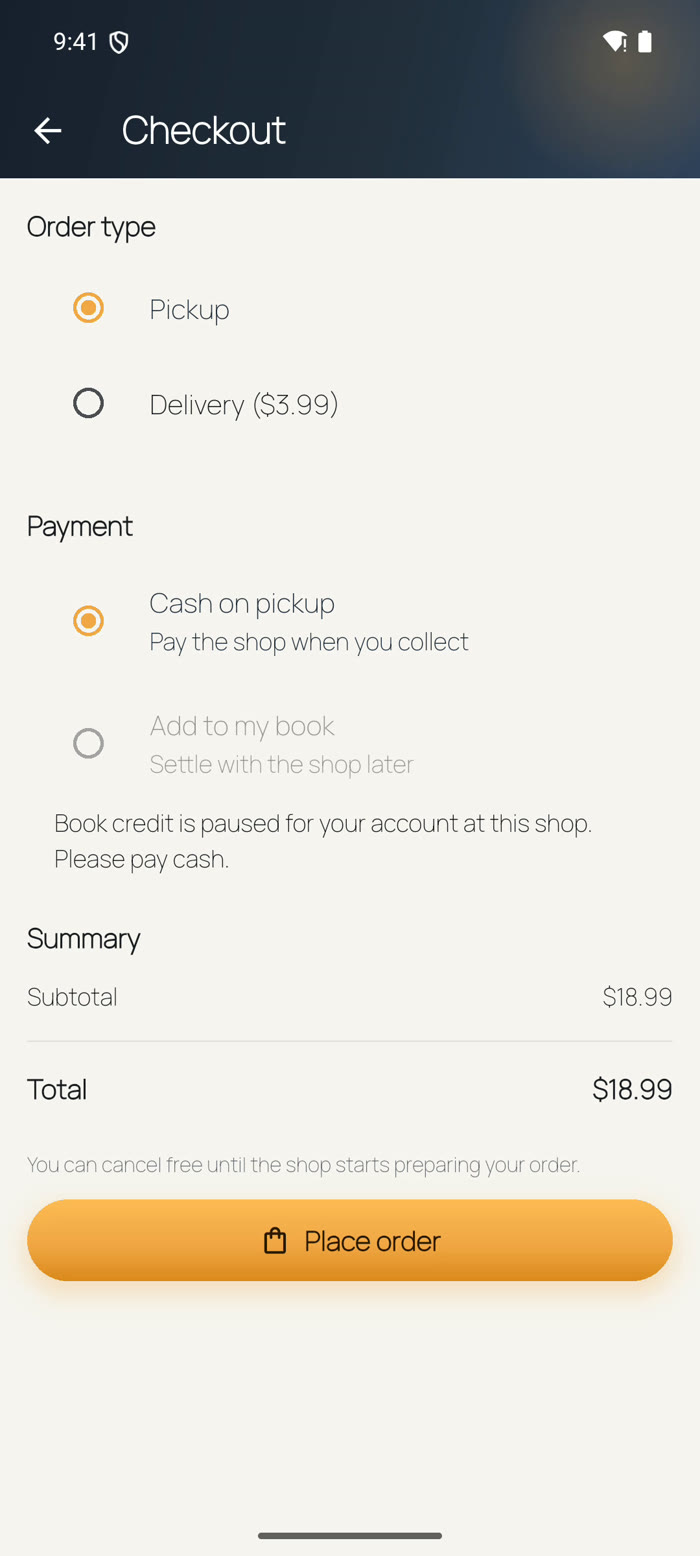
  1. At checkout, choose Pickup or Delivery.
  2. Choose how to pay:
    · Cash on pickup — pay the shop when you collect.
    · Add to my book — if the shop has opened a book account for you, the order goes on your book; settle with the shop later.
    · Card — in Canada, where the shop offers it. Your card is charged safely by Stripe, and the shop is paid when your order completes.
  3. Check the summary and tap Place order.

No pressure: you can cancel free until the shop starts preparing your order — it says so right on the checkout screen.

Checkout with Pickup or Delivery and cash or book payment options

Checkout — your way to pay.

7 · Your orders & book accounts

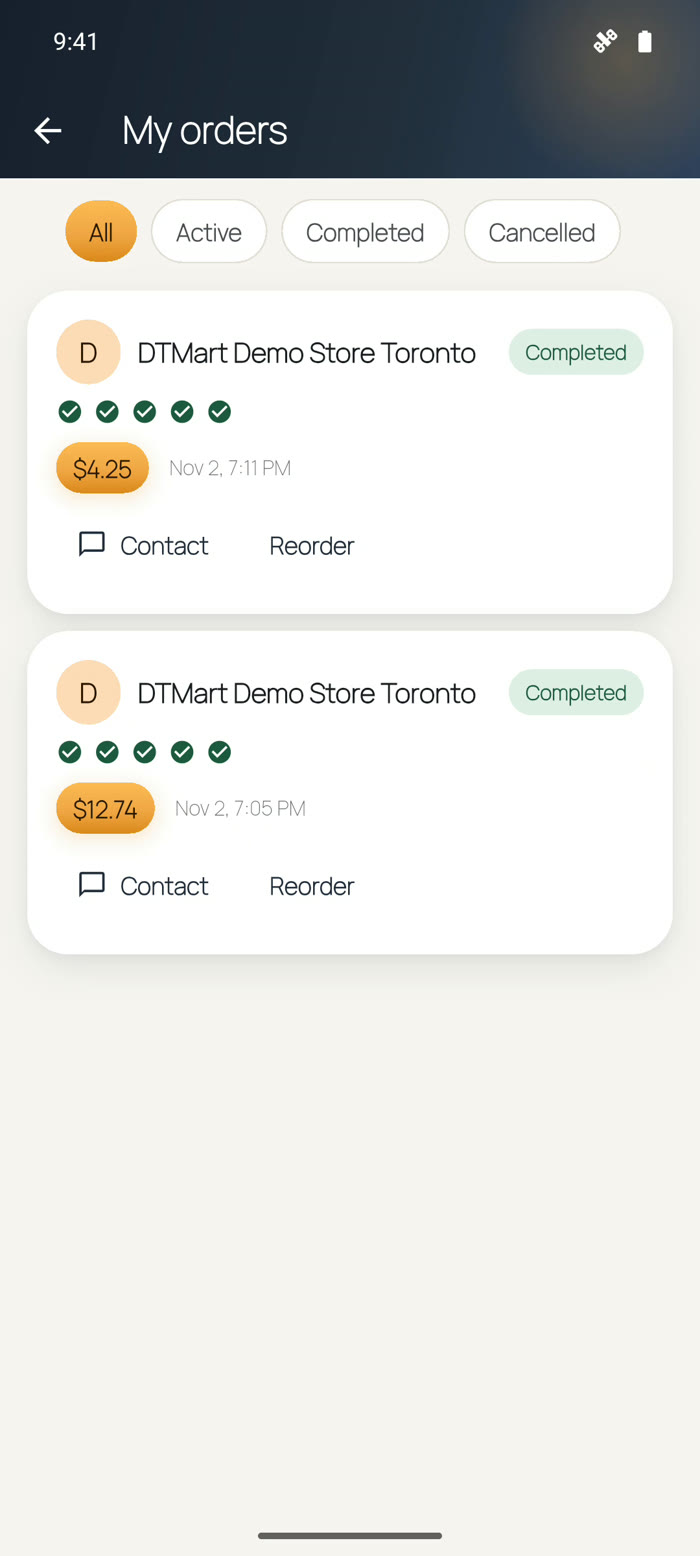
  1. Open Orders to follow everything: All, Active, Completed, Cancelled.
  2. Tap an order to see its progress — Received, being packed, Ready, done.
  3. Contact on any order messages the shop directly; Reorder repeats a finished order in one tap.
  4. Your book: if a shop puts things on the book for you, "Add to my book" appears for you at that shop's checkout. The shop keeps your balance and can show it to you any time.

In your language: switch the whole app — English, Sinhala or Tamil — from your Profile, under Language.

My orders with completed orders, Contact and Reorder

Your orders, all in one place.

Run a shop?

The shop guides cover setting up, taking orders, the credit book and payouts — everything on the Seller side.